


StriveDB makes it simple to keep all documentation organized, secure, and exactly where it belongs -- whether you are uploading a document tied to a specific case or attaching something directly to the client.
In this guide, we will walk through how to upload documents to both cases and clients, and how to view all files in one place from the client record.
Case vs. Client: Where Should Documents Go?
You can upload documents in two places:
- From a Case -- For documents tied to a specific incident, like a medical record or restraining order.
- From a Client's Profile -- For general documents not associated with a particular case, like intake forms, signed releases, or ID copies.
Think of the client's Documents tab as a full document history across all cases and interactions.
Uploading a Document to a Case
Step 1: Find the Case
Go to the Advocacy -> Cases section. Search for and open the case you want to work with.
Step 2: Open the Documents Tab
Inside the case view, click on the Documents tab. This shows any files already uploaded to this case.
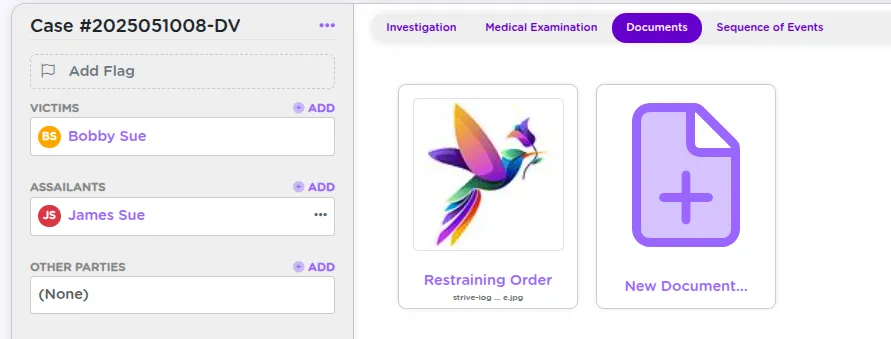
Step 3: Upload
Click "Upload a new document", then:
- Choose a Document Kind (e.g., Exam, Court Order, Counseling Form)
- Select your file
- Click Upload
Once uploaded, the document will appear in the list for that case and also show up in the client's master document view.
Uploading a Document to a Client
You can also upload documents directly to the client.
- Go to the People section and open the client's profile.
- Click on their Documents tab.
- Click "Upload a new document".
- Select a Document Kind and upload the file.
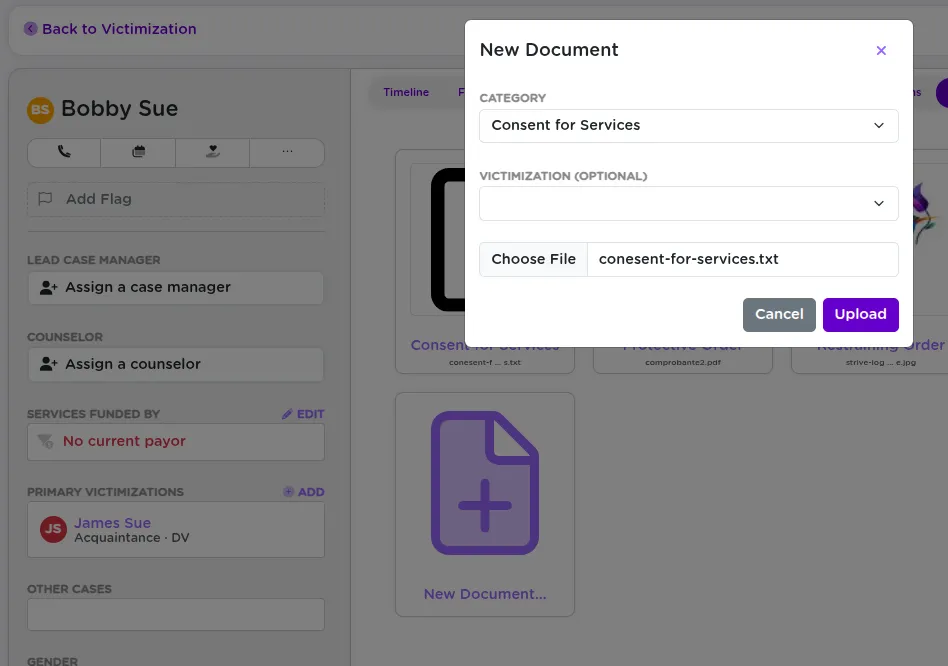
Documents uploaded here may or may not be tied to a specific case, but will still show up alongside case files in the same tab.
Downloading and Viewing Documents
Click on any listed file to download it instantly. This works from:
- The case-level Documents tab
- The client's master Documents tab
Best Practices for Document Management
- Be consistent when choosing document types -- this makes reporting and filtering easier.
- Respect privacy settings -- only upload what is appropriate, especially when not case-specific.
- Use the client's Documents tab as your go-to for a complete paper trail.
Summary
Whether you are attaching files to a case or uploading documents directly to a client, StriveDB keeps everything organized and accessible when you need it most. The full picture is always just a few clicks away.
Have questions about file types, categories, or permissions? Reach out to support -- we are here to help.