



Welcome to StriveDB! This platform is built for organizations like yours -- teams doing important, sensitive work who need a system that makes things easier, not harder. From client services to internal tracking, StriveDB helps you manage the details without losing sight of the big picture.
This post walks through the key areas of the system. Whether you are a counselor, volunteer, director, or admin, you will get a feel for what lives where and how to get things done quickly.
Your Inbox: The Mission Control Center
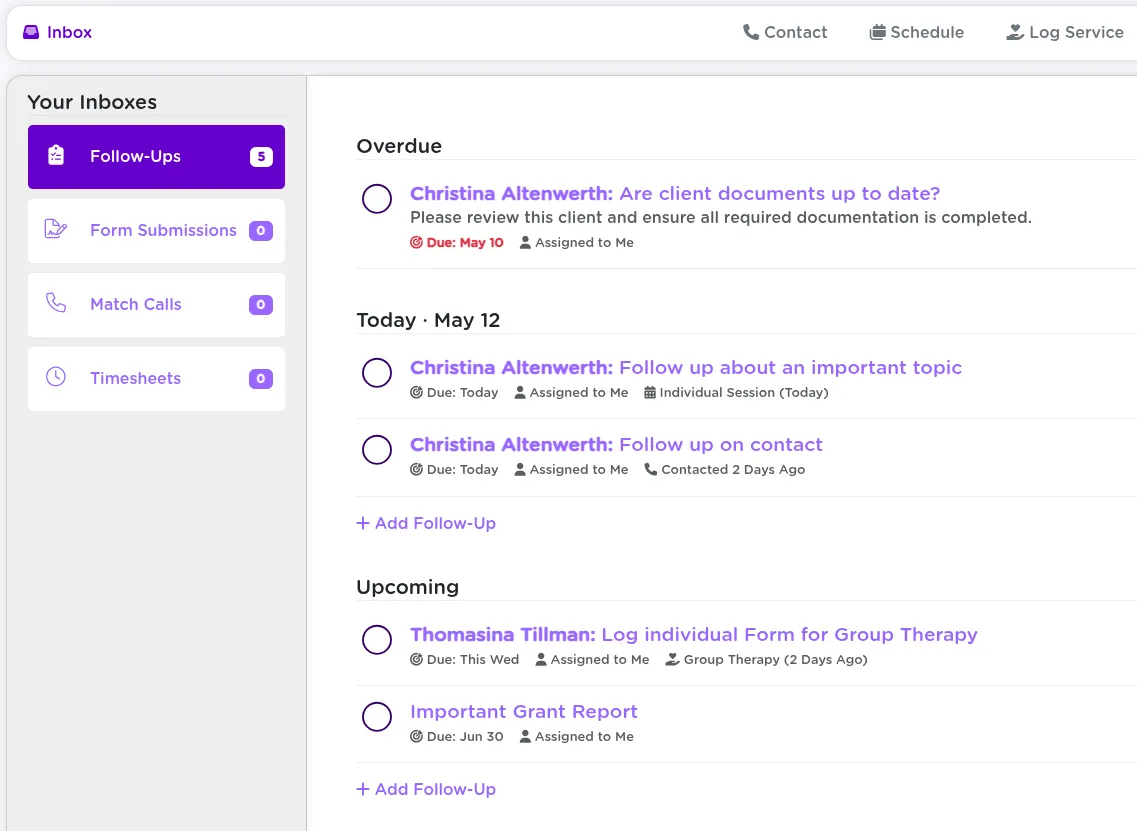
When you log in, you land on your Inbox -- the nerve center for your day-to-day tasks.
- Follow-ups
- Forms that need your attention (either to approve or to make requested changes)
- Area to match any unmatched calls from volunteers
- Timesheets that need your attention
Some follow-ups are standalone reminders; others are tied to specific clients, services, or appointments. You can mark items complete or assign them to others with a couple of clicks.
Layout and Navigation: Getting Around the Platform
StriveDB uses two consistent navigation elements across every screen:
Left-Hand Navigation
Global Search and your main menu -- jump between Clients, Services, Appointments, Forms, and more.
Top Bar Shortcuts
Quick actions for common tasks:
- Log Contact
- Schedule Appointment
- Log Service

Tip: Use the global search as your first stop when looking for anything. It finds clients, assailants, cases, and more.
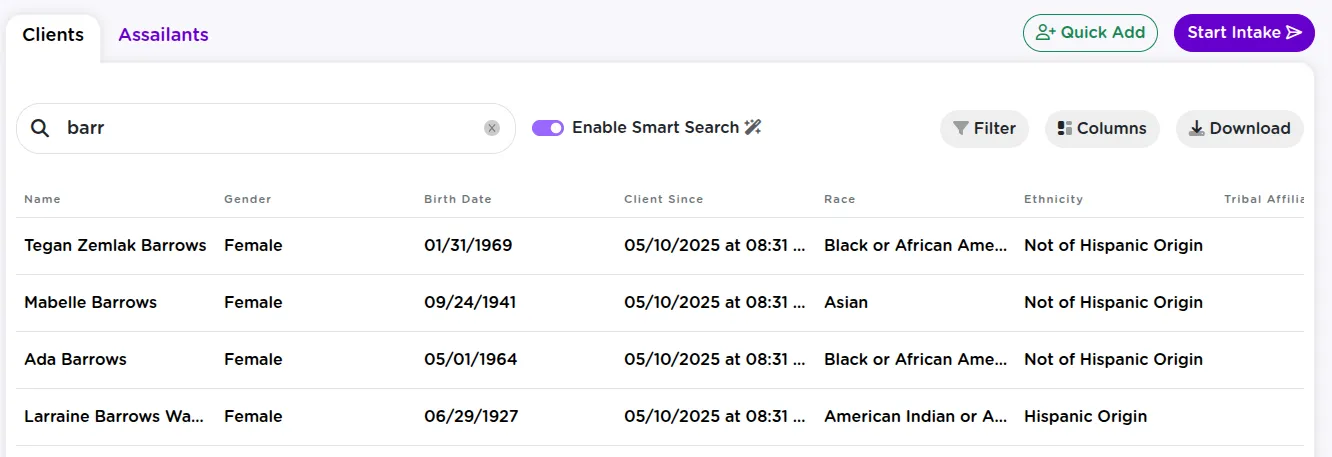
People: Clients and Assailants, Organized
The People section houses all your clients and related parties. Use filters, search, and sorting to find what you need quickly.
You can link an intake to an existing person or create a new one as needed.
Advocacies: Where the Real Work Happens
The Advocacies section breaks into focused tools:
- Cases -- Main intake record with attached services, investigations, documents, and more.
- Contacts -- Log every phone call, meeting, or check-in.
- Services -- Track sessions and support for reporting and audits.
- Presentations -- Record outreach events, audiences, and details.
Custom Forms and Questionnaires
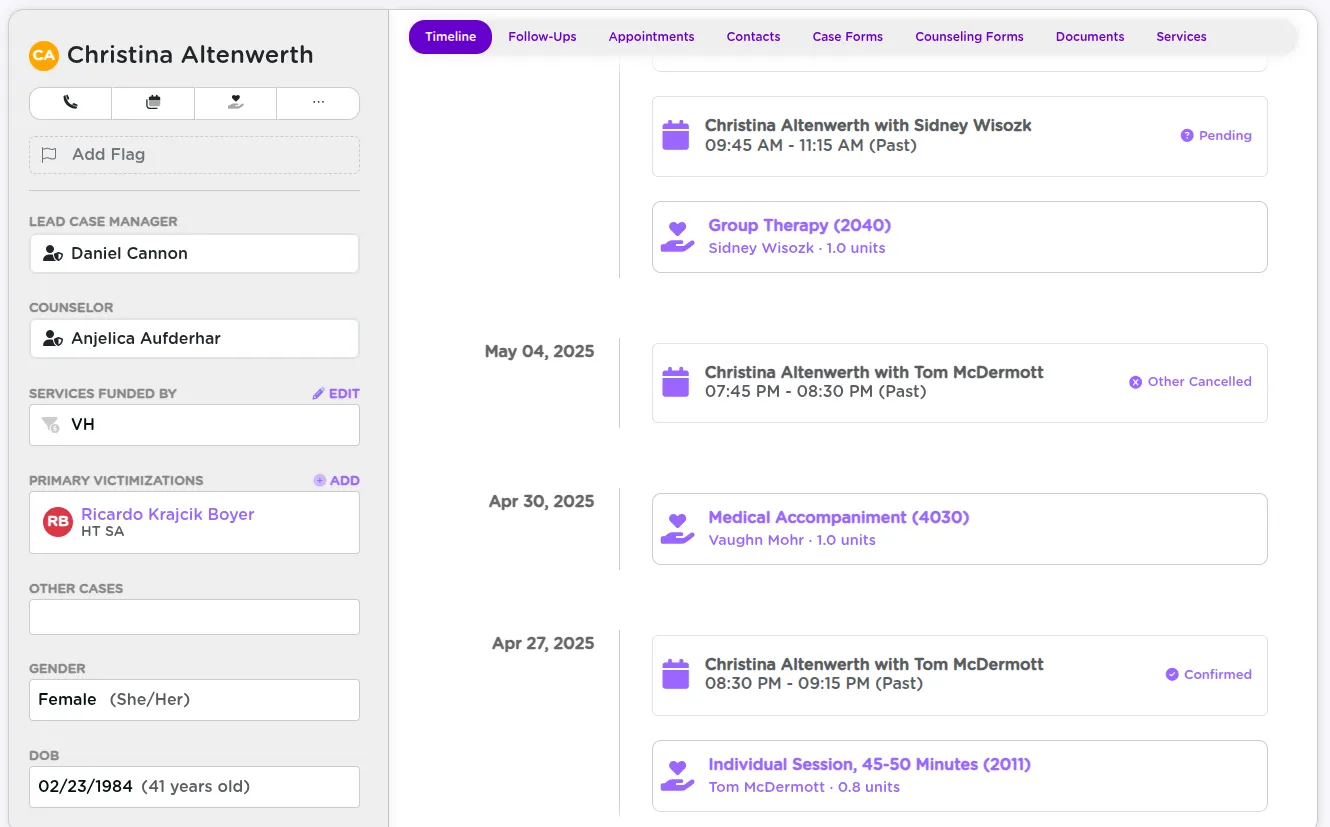
Access any forms your organization uses -- closure plans, session notes, and more. Build them, customize them, and fill them out directly in the system.
When you complete a form, it is automatically saved to the relevant client's record. Some forms (like session documentation) may require approval by a supervisor or director before they are considered complete. You will see their status right in the system, and updates or feedback can be made in-line.
No more chasing down PDFs or emailing forms around -- everything lives in one place and flows through the right review steps automatically.
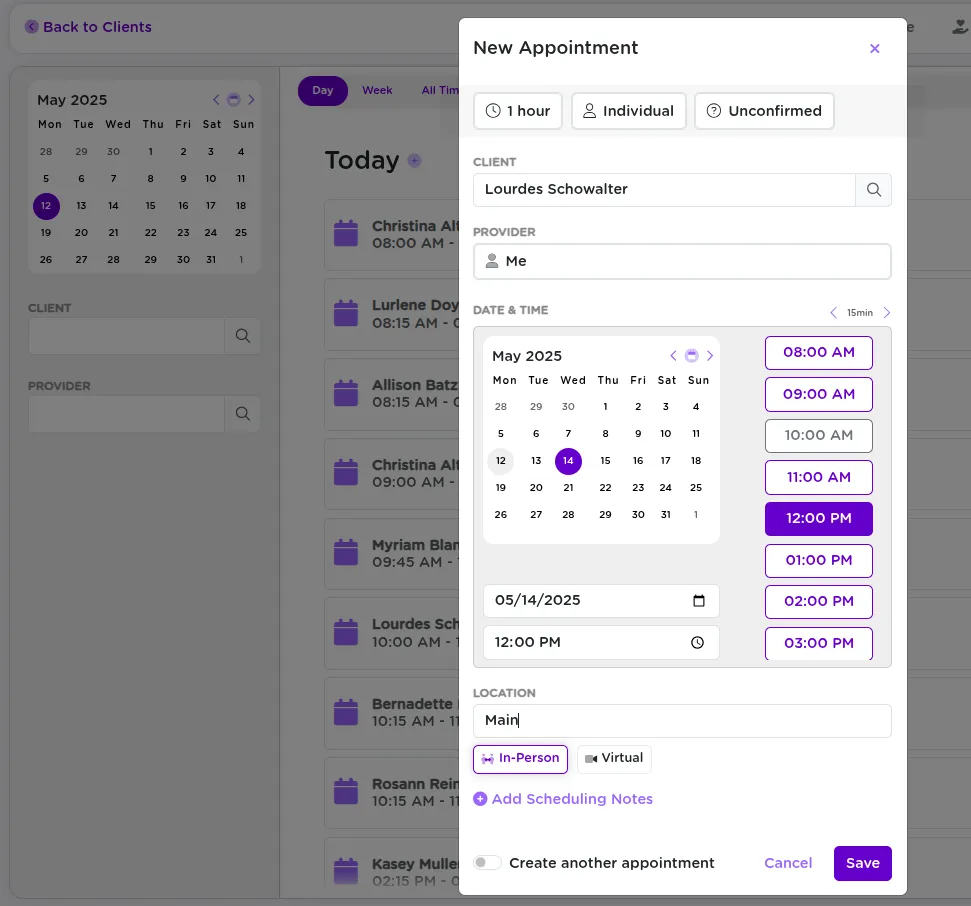
Appointment Scheduling and Tracking
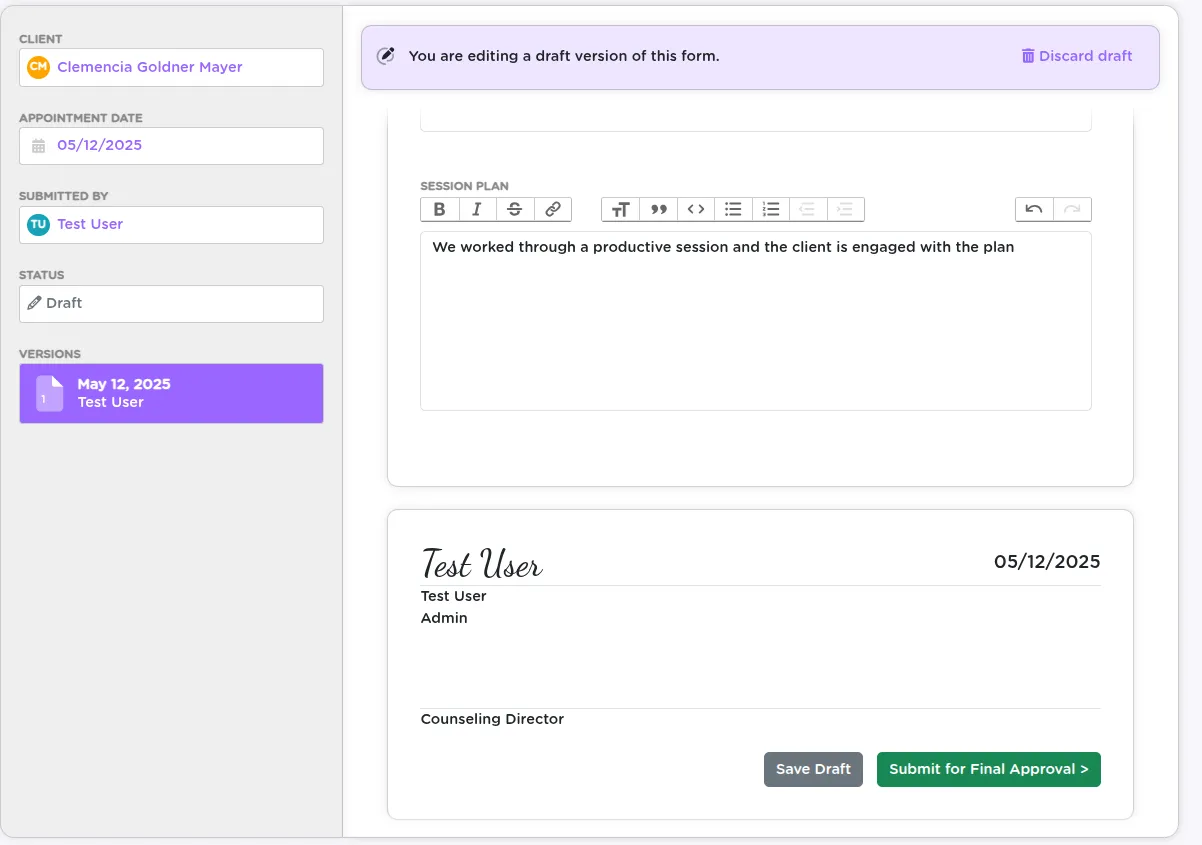
View your calendar, search others' schedules, and update outcomes after the fact.
- Mark attendance
- Reschedule
- Add session details or follow-ups
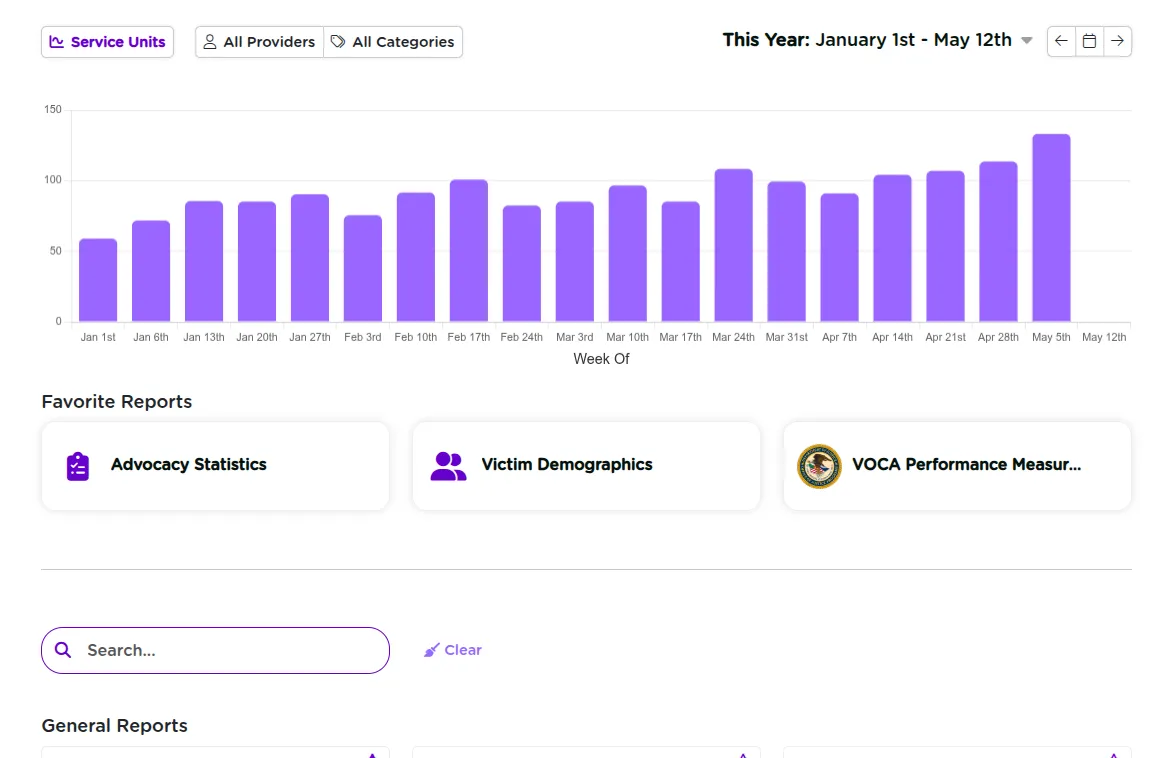
Reporting: Pull the Data You Need
Admins can generate summaries, pull reports for grants, and dig into trends across your data.
Settings: Customize the Experience
Admins can:
- Manage users and roles
- Build and configure forms
- Configure service codes and grant tags
- Customize field names and data collection options
Getting Help
Click the Support button in the lower-left corner for fast help and answers.
Next Steps
StriveDB is built to help you stay organized, track work across your team, and keep data safe and compliant.
Continue learning with these guides: