



Client flags are a high-visibility way to make sure important information does not get buried. Whether it is a safety concern, a behavioral note, or a clinical risk factor, flags help your team stay informed and make better decisions across departments.
This post covers how to create, manage, and control visibility of flags in StriveDB.
Adding a Flag
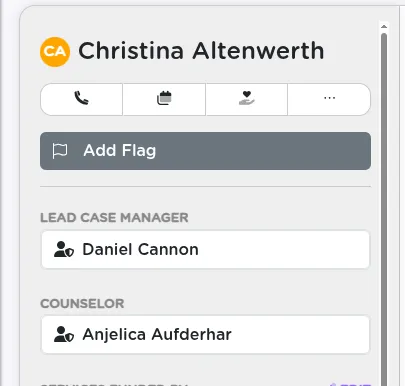
From any client's profile, click the "Add a Flag" button near the top of the page. This opens a form to enter the flag's details.
Selecting a Flag Reason
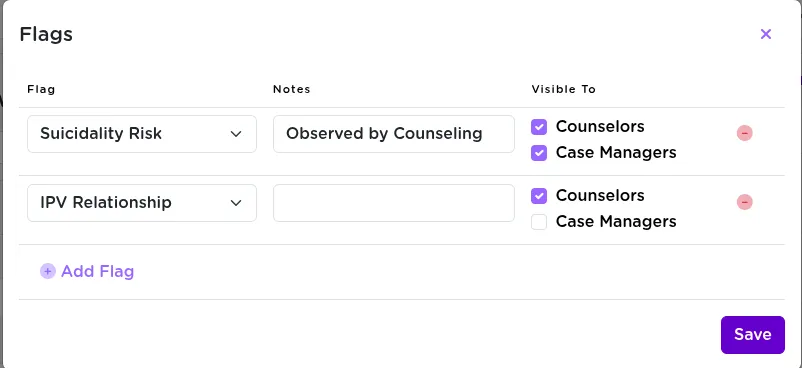
You will choose a flag reason from a dropdown menu. Common examples include:
- Suicidality
- Homicidality
- IPV Relationship
This label becomes the visible headline on the client's profile.
Adding Context
You can also include a note to provide more context -- for example:
- "Discussed in last session with counselor"
- "Client has mentioned suicidal ideation in multiple check-ins"
Notes are especially useful for quickly conveying the source or recency of the concern.
Controlling Flag Visibility
Each flag has a confidentiality setting that determines who can see it:
- Flags can be restricted to counselors only
- Shared with case managers and counselors
- Or visible to all staff with access to the profile
This lets you surface sensitive information to the right people without overexposing it.
Only users with proper permissions will see flags marked confidential.
Where Flags Appear
Saved flags appear at the very top of a client's profile -- bold, color-coded, and impossible to miss (if you are allowed to see them).
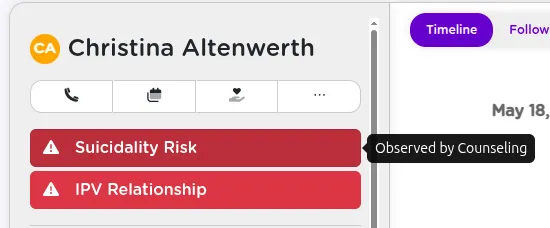
If a user does not have permission to view a flag, they will not see it at all.
Editing or Removing Flags
Flags are not permanent. You can:
- Edit the flag reason, notes, or confidentiality
- Remove the flag entirely if it is no longer relevant
This keeps the client profile clean, current, and useful.
Multiple Flags
You can add more than one flag per client. For example:
- A Suicidality flag visible to counselors and case managers
- And an IPV concern flag marked as counselor-only
This allows your team to track multiple concerns with different access levels, based on what is appropriate for each role.
Summary
Client flags are one of the most visible and impactful ways to communicate risk and priority information across your organization. Use them thoughtfully, keep them updated, and lean on the confidentiality tools to strike the right balance between awareness and privacy.
Need help configuring custom flag reasons or visibility rules? Reach out to support -- we will walk you through it.