



Follow-ups in StriveDB act like powerful, context-aware to-do items. Whether you are reminding yourself to call a client, assigning a follow-up to a teammate, or tracking next steps after a session, the follow-up system keeps things organized and actionable.
This post walks through how follow-ups work, where to find them, and how to get the most out of them in daily use.
Viewing Your Follow-Ups in the Inbox
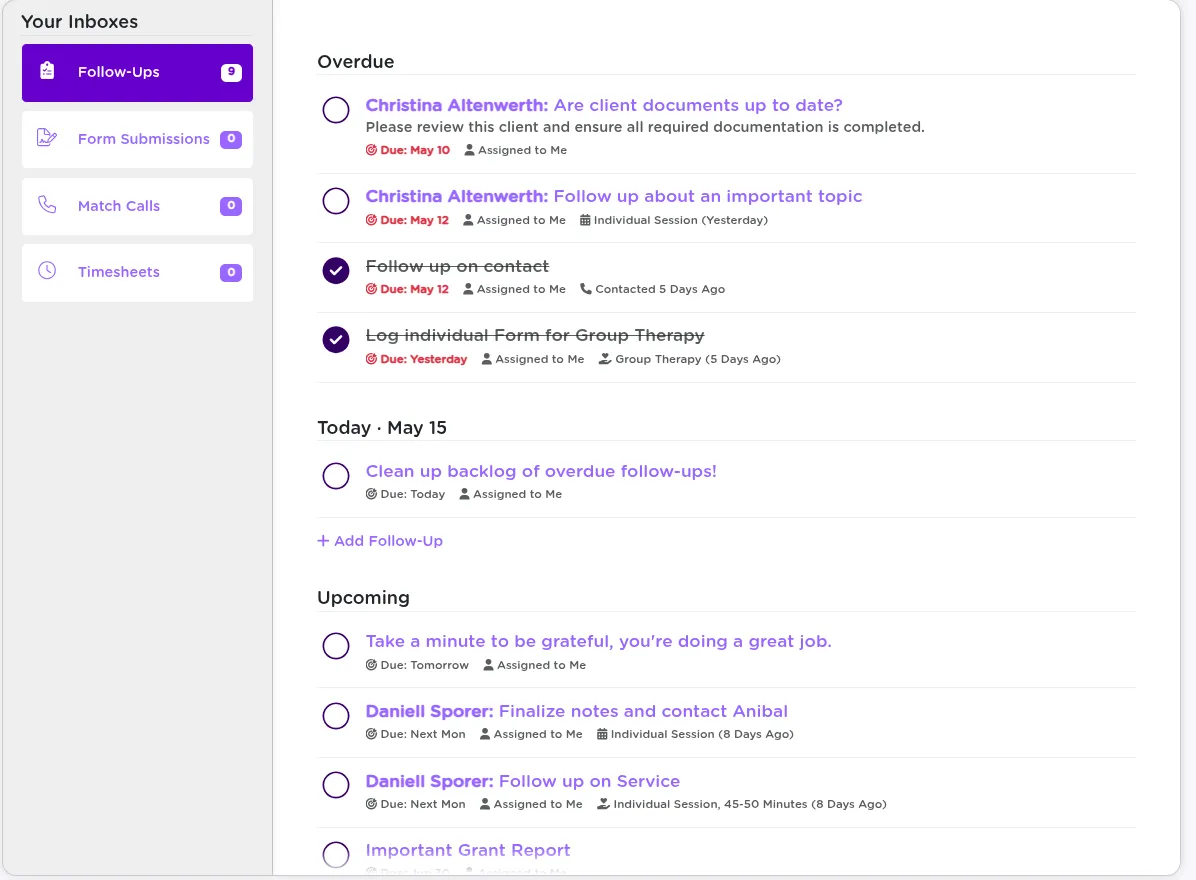
Most users start their day in the Inbox, which includes the Follow-Ups panel. This area is divided into sections:
- Today
- Tomorrow
- This Week
- Past Due (if any)
Each follow-up shows the assigned user, linked client (if any), and a short summary of the task.
New to the Inbox? Check out our StriveDB Overview.
Types of Follow-Ups: Standalone, Client, Appointment, and Service
StriveDB supports several types of follow-ups, depending on where they are created:
- Standalone reminders -- General tasks like "Email team" or "Check voicemail"
- Client-related -- Follow-ups tied to a specific survivor
- Appointment-based -- For example, scheduling a follow-up after a no-show
- Service-related -- Reminders to complete documentation or follow up on a provided service
You will always know the context of a follow-up by the icon and linked record it displays.
Completing a Follow-Up
Click the checkbox next to any follow-up to mark it as complete. If the follow-up is tied to another action (like logging a service), completing that task may also mark the follow-up complete automatically.

Assigning Follow-Up Tasks to Other Team Members
You are not limited to your own list -- follow-ups can be assigned to other users in your organization. This makes it easy to hand off next steps, coordinate care, or route follow-ups to admins or supervisors.
Assigned follow-ups appear in that person's inbox and also remain visible to users with the right permissions.
Context-Linked Follow-Ups for Clients, Appointments, and Services
When a follow-up is tied to another record, StriveDB gives you convenience tools right from the follow-up:
- Client -- Quick link to contact, schedule, or review their profile
- Appointment -- Reschedule or log an outcome
- Service -- Complete required documentation
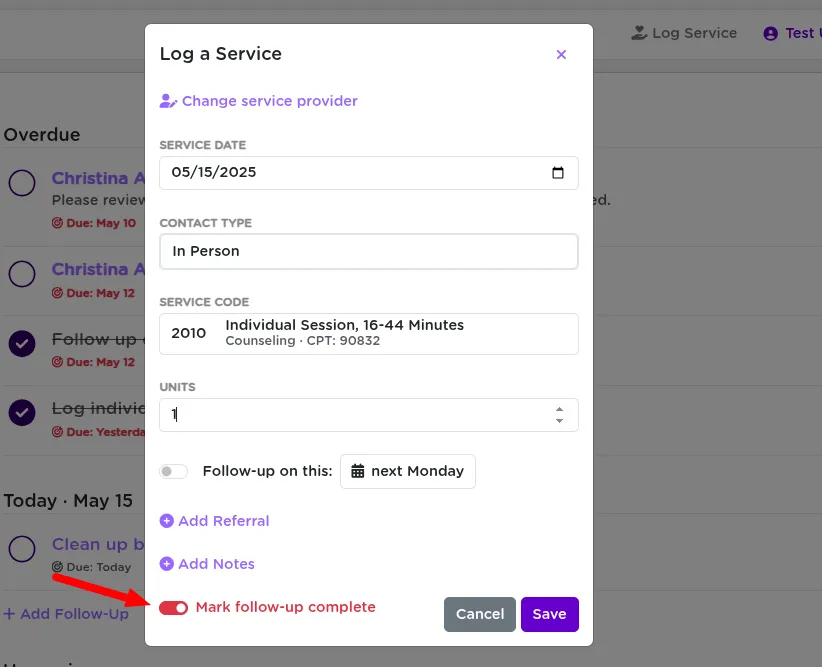
Completing one of these related actions can automatically complete the follow-up as well.
Editing Follow-Up Details
Need to adjust something? Click into the follow-up to:
- Change the due date
- Reassign the task
- Add or update notes
- Modify the linked record (in some cases)
Where Else Follow-Ups Appear in StriveDB
Follow-ups do not just live in your inbox. You will also find them in places that make sense contextually:
- Client profile, Follow-Ups tab -- See all tasks tied to that person
- Appointments tab -- View team-wide follow-ups related to scheduled sessions
- Service records -- View or add follow-ups directly from logged services
Want to see how appointments tie in? Check out our Appointments Guide.
Key Takeaways
StriveDB's follow-up system is more than just a checklist -- it is a flexible, collaborative tool that keeps critical tasks visible and actionable. Whether you are managing your own caseload or coordinating across a team, follow-ups help make sure nothing slips through the cracks.
Need help building a workflow around follow-ups? Reach out to support and we can help configure it to fit your team.