


Supervisors and licensed staff play a critical role in reviewing counseling session forms submitted by those working under supervision. StriveDB makes that process fast and traceable -- so nothing falls through the cracks.
This post walks through how to find, review, approve, or request changes on submitted forms.
Where Forms Show Up
When a supervised counselor submits a form, it appears in your Inbox under the Form Submissions section.
You will see the form title, who submitted it, the appointment it is linked to, and its current status.
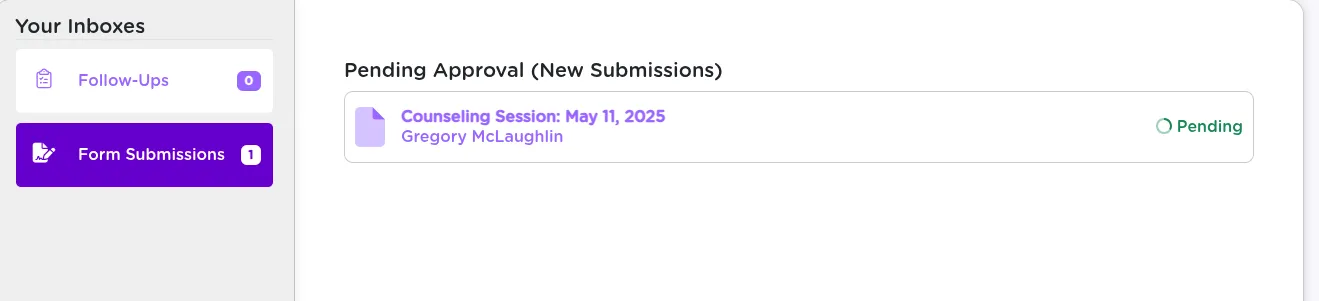
You will only see forms from staff you supervise or are responsible for approving, or anyone who is using your license.
Reviewing the Form
Click into the form to read what was submitted. You can view:
- Session notes
- Clinical details
- Any required fields or custom prompts
If everything looks good, you can finalize. If not, you can request revisions.
Approving the Form
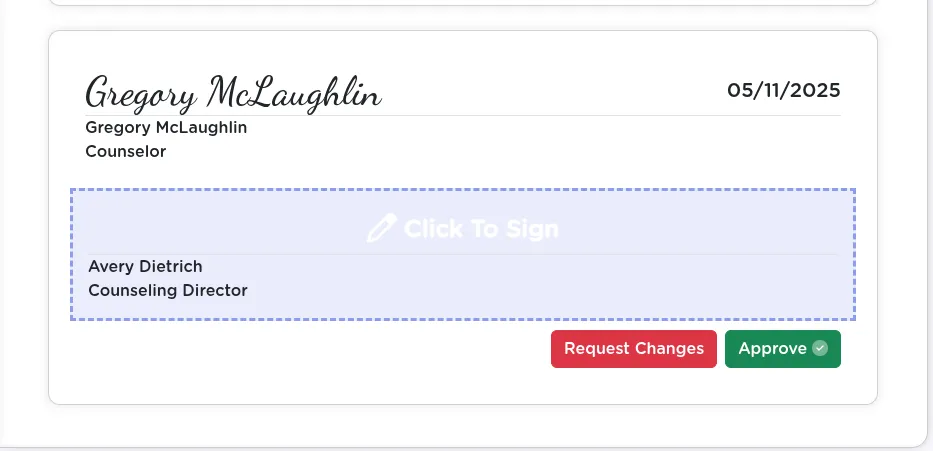
To approve:
- Scroll to the bottom of the form
- Click Sign & Approve
This locks the form and changes its status to Finalized. The session is now complete and officially recorded.
Requesting Changes
If something is missing or unclear, you can send it back:
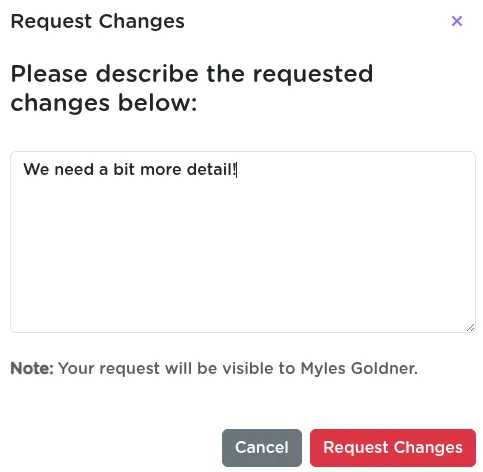
- Click Request Changes
- Add a comment describing what needs to be addressed
The counselor will be notified in their inbox. The form will show as Sent Back until they resubmit.
Keeping Track of Status
Once you approve or send back a form, its status updates automatically. You can always track:
- Draft -- Not submitted yet
- Pending -- Awaiting your review
- Sent Back -- Awaiting counselor revision
- Finalized -- Signed and complete
You can find finalized forms from the appointment view or the Forms tab.
Related Training Guides
Summary
StriveDB's session form review system keeps counseling documentation tight and transparent. With built-in approval and revision tools, supervisors can provide oversight without bottlenecks -- and counselors can improve their documentation with feedback that is easy to act on.
Want to adjust your approval routing or set auto-notifications? Reach out to support -- we will help you dial it in.