


If you are a counselor working under supervision, you will need to submit your session forms for review after each appointment. StriveDB makes this smooth and secure -- so your notes are clear, timely, and signed off by your supervisor or clinical director when needed.
This guide walks through how to fill out, submit, and revise a counseling session log when approval is required.
Starting a Session Form from the Appointment Record
The easiest way to get to your session form is from the appointment record itself:
- Navigate to your Appointments tab
- Select the appointment in question
- Look for the Add Counseling Session button or open the form if one already exists
You can also find forms under the Forms section in the main navigation -- handy if you need to return to a draft.
Completing the Session Documentation
Each form is custom to your organization, but usually includes:
- Session type and setting
- Key concerns or topics covered
- Clinical impressions
- Interventions used
- Next steps or referrals
You can add optional notes and sign the form at the bottom.
Saving a Draft or Submitting for Approval
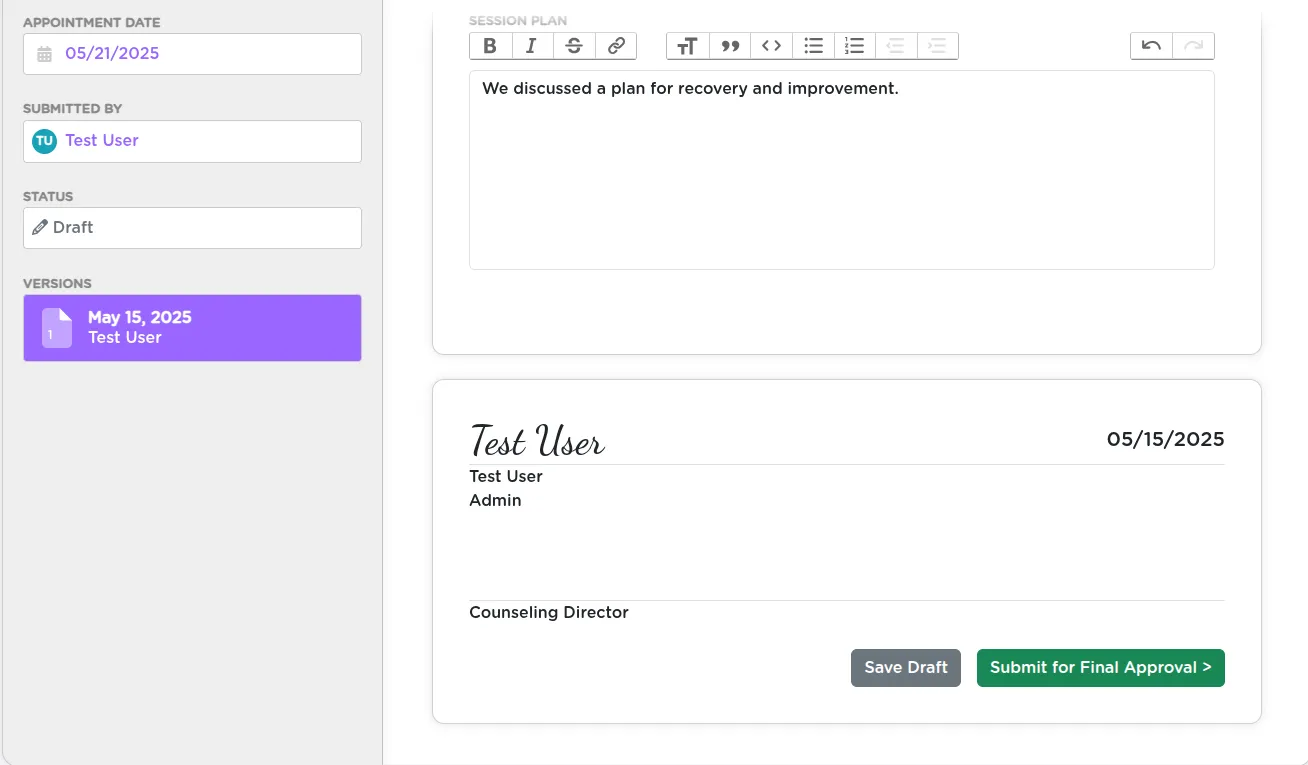
At the bottom of the form, you will see two buttons:
- Save Draft -- If you are still working on your notes
- Submit for Final Approval -- Once you are ready for your supervisor to review
After submission, the form's status changes to Pending, and it lands in your supervisor's inbox for review.
Handling Revision Requests from Your Supervisor
Your supervisor may return the form with comments. In that case:
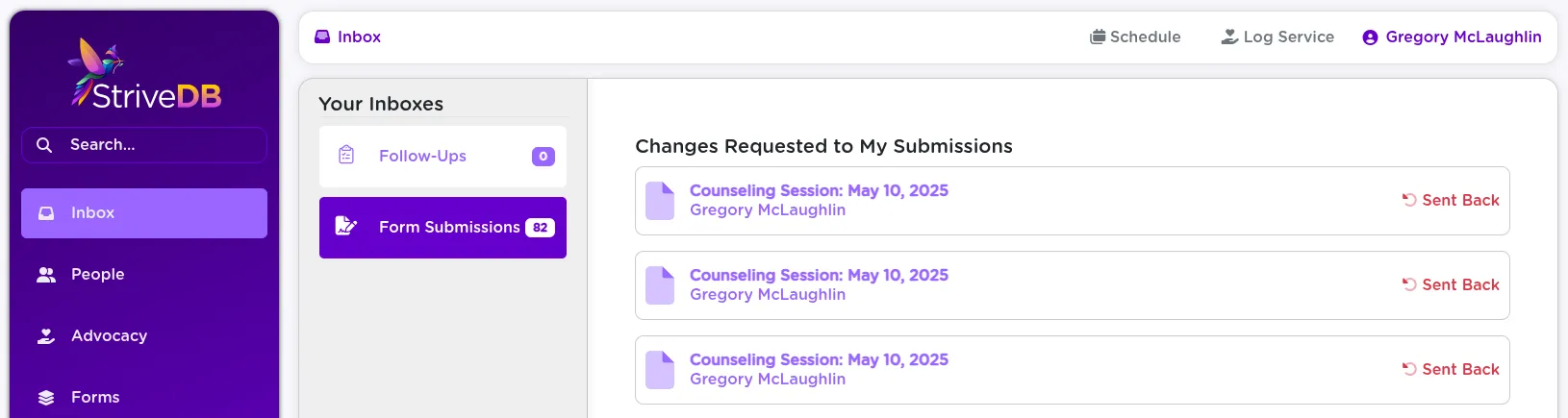
- You will see a notification in your inbox under "Form Submissions"
- The form will be marked Sent Back
Open the form, review the comments, make any necessary edits, and resubmit for approval.
Finalization and the Completed Session Record
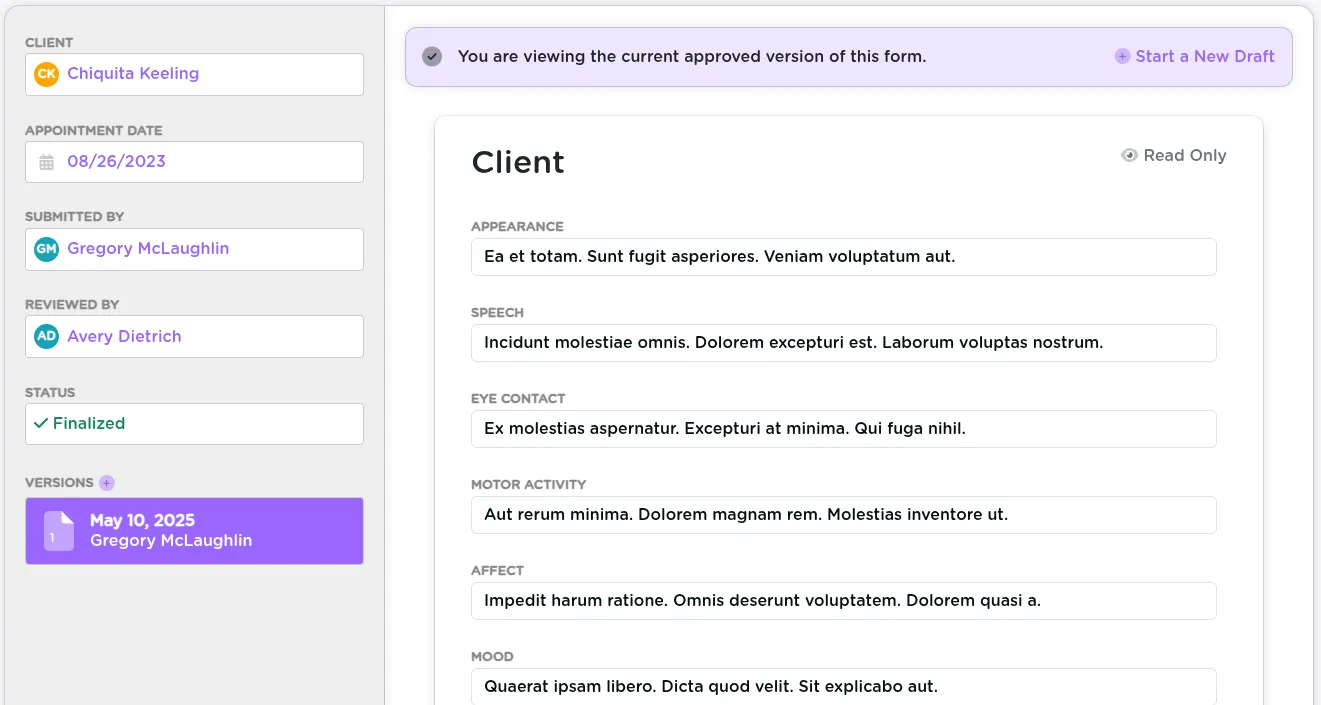
Once your supervisor approves and signs the form, its status changes to Finalized. No further edits are needed, and it is now part of the official client record.
You can check the form's status anytime from the appointment page or your inbox.
Related Training Guides
Maintaining Clinical Accountability Through Timely Documentation
Submitting your counseling session logs promptly helps maintain accurate records and ensures clinical accountability, grant compliance, and legal compliance. If you are working under supervision, StriveDB keeps the approval process simple -- with built-in routing, comments, and status tracking every step of the way.
Need help customizing session forms or approval workflows? Reach out to support -- we will make sure it works for your team.